Device guide
OP-1: tools, mods & resources
Community-made software, firmware mods, accessories, guides, and answered questions for the Teenage Engineering OP-1 (also known as OP1).
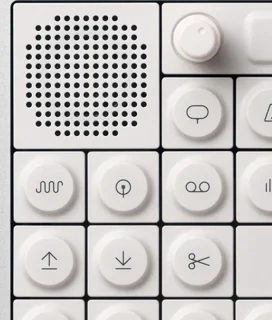
MIDI Controllers & Sequencers
All midi controllers & sequencers
Sample & Kit Tools
All sample & kit tools
chirashi
CLI that converts sliced-sample formats, including OP-1 and OP-XY, REX, M8 and Tracker
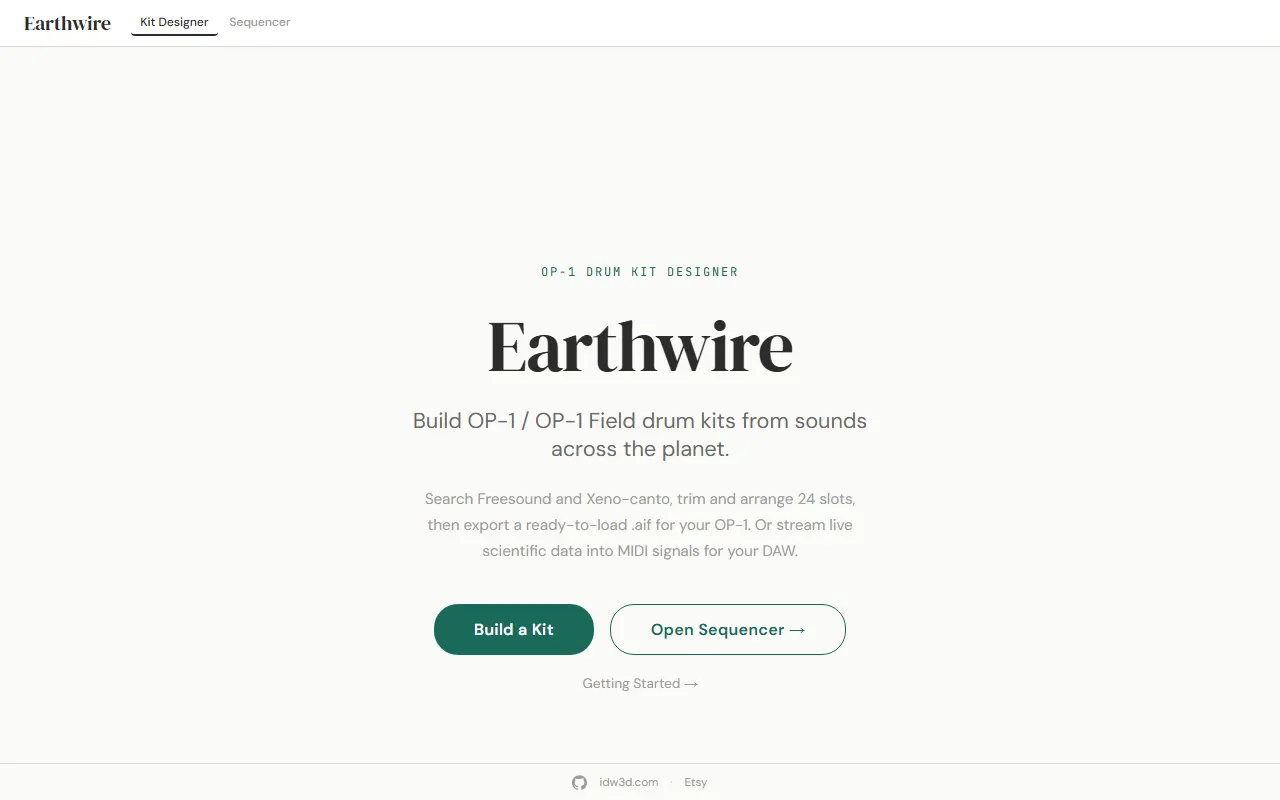
Earthwire
Build OP-1 / OP-1 field drum kits from sounds across the planet
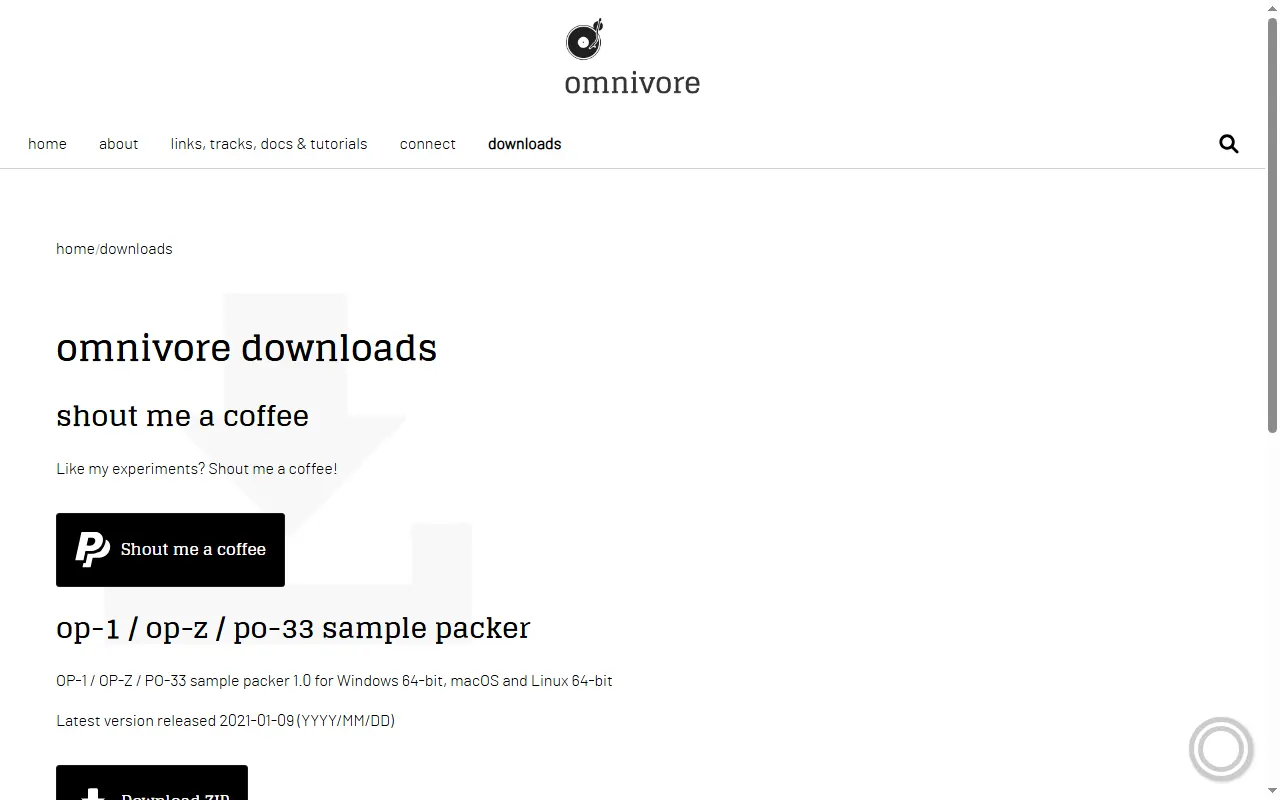
Omnivore Sample Packer
Desktop app that packs and edits sample kits for the OP-1, OP-Z and PO-33
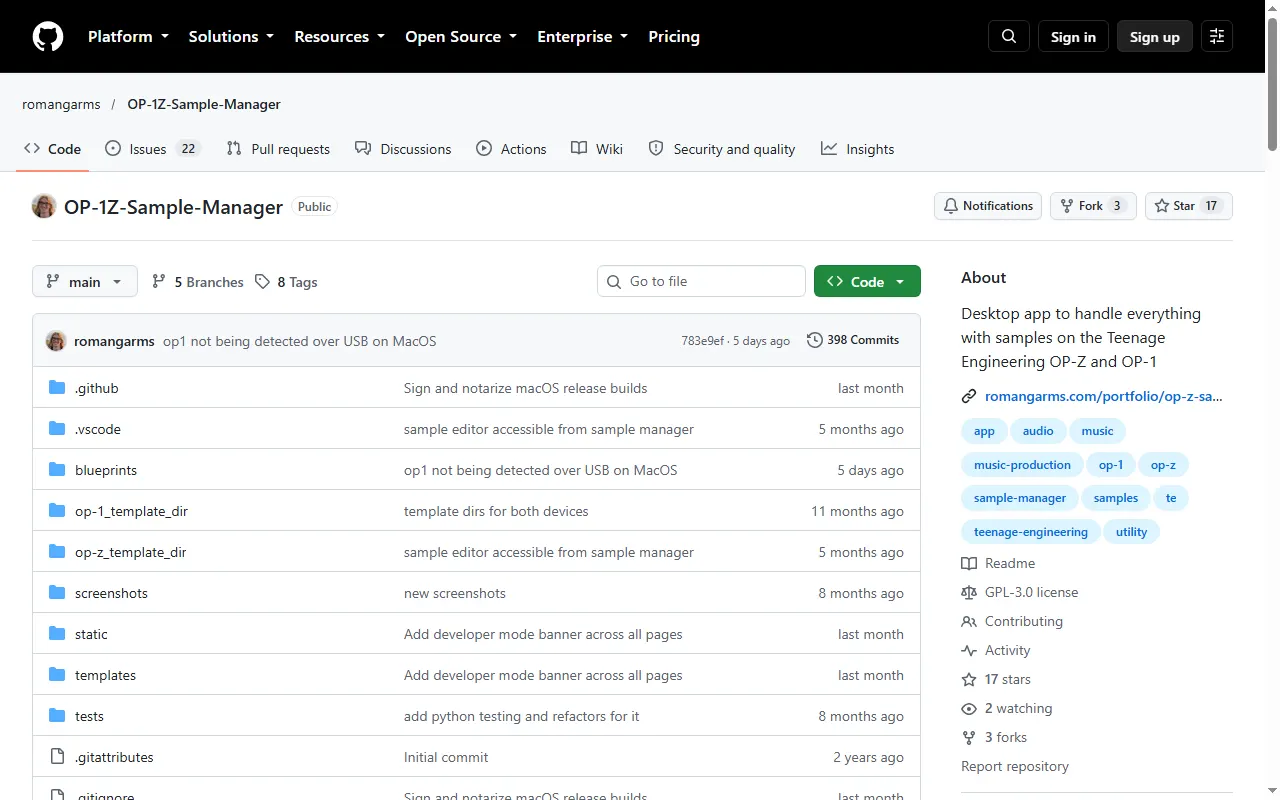
OP-1Z Sample Manager
Desktop app for managing samples on the OP-Z and OP-1, with a built-in sample editor
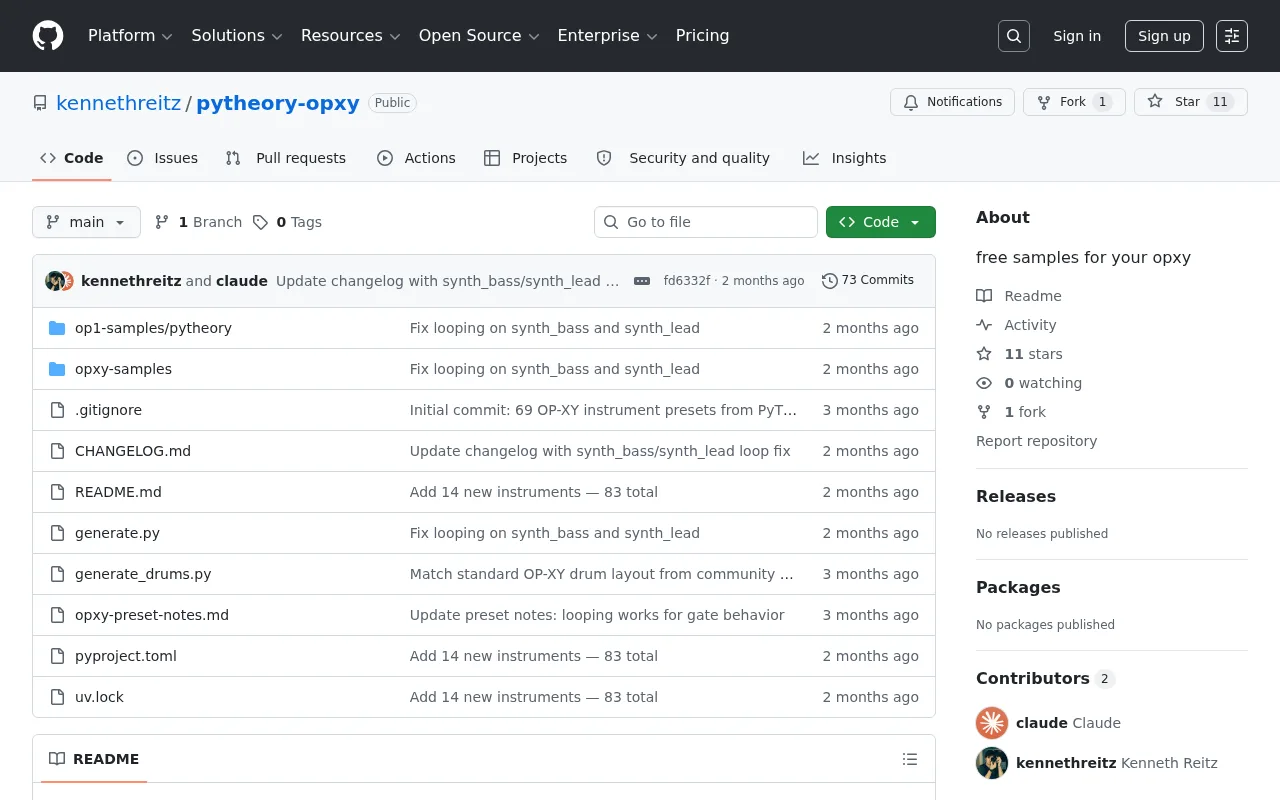
PyTheory OP-XY Samples
Free multisample instrument presets for the OP-XY and OP-1
TE Loop Cutter
Offline PWA loop cutter that exports loops for the OP-1, OP-XY, OP-Z and EP-133
teoperator
Turn any sound on the internet into an OP-1 / OP-Z drum or synth patch
TRKLS
Browser sample-library tool for TE devices: chop, chain and send samples to the EP-133, OP-1 and OP-Z
Sound Packs & Patches
All sound packs & patches
Firmware Mods
All firmware mods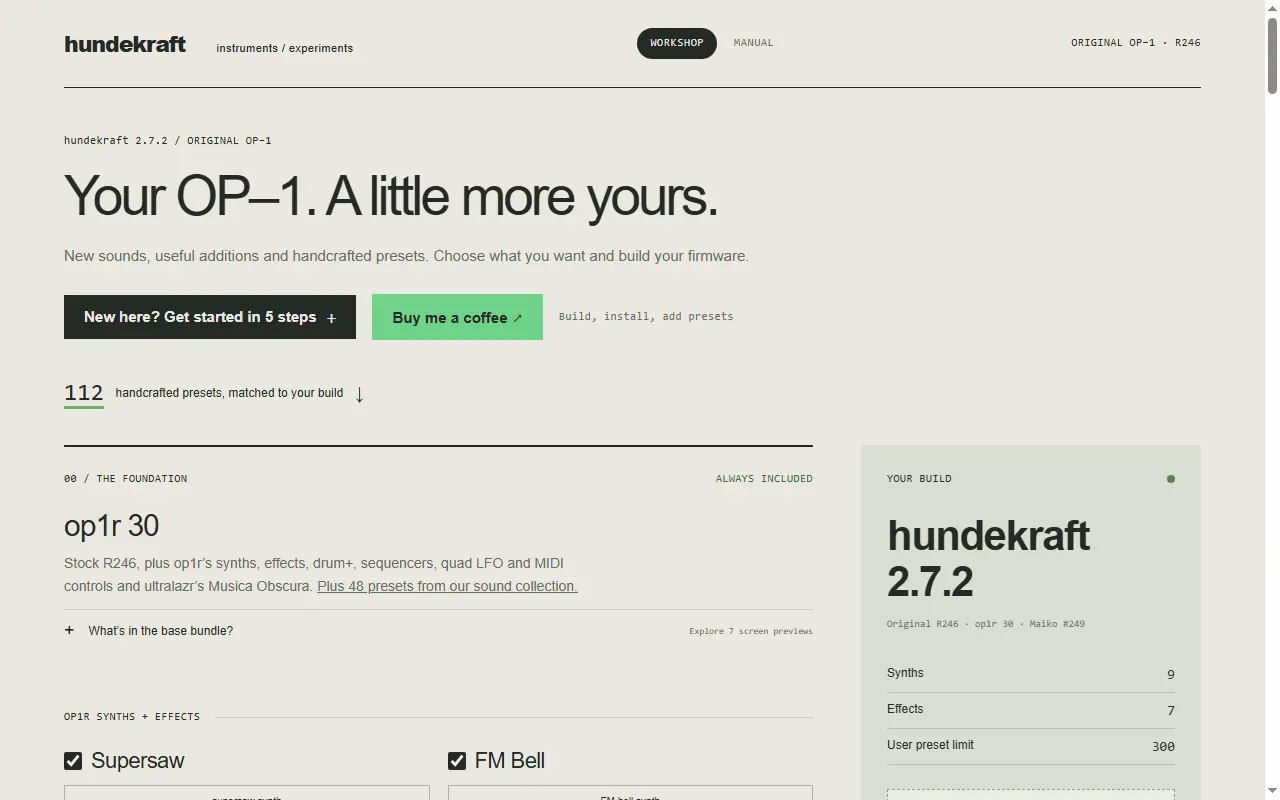
Hundekraft OP-1 Firmware Workshop
Browser firmware builder for the original OP-1 with op1r, extra engines and 112 matched presets
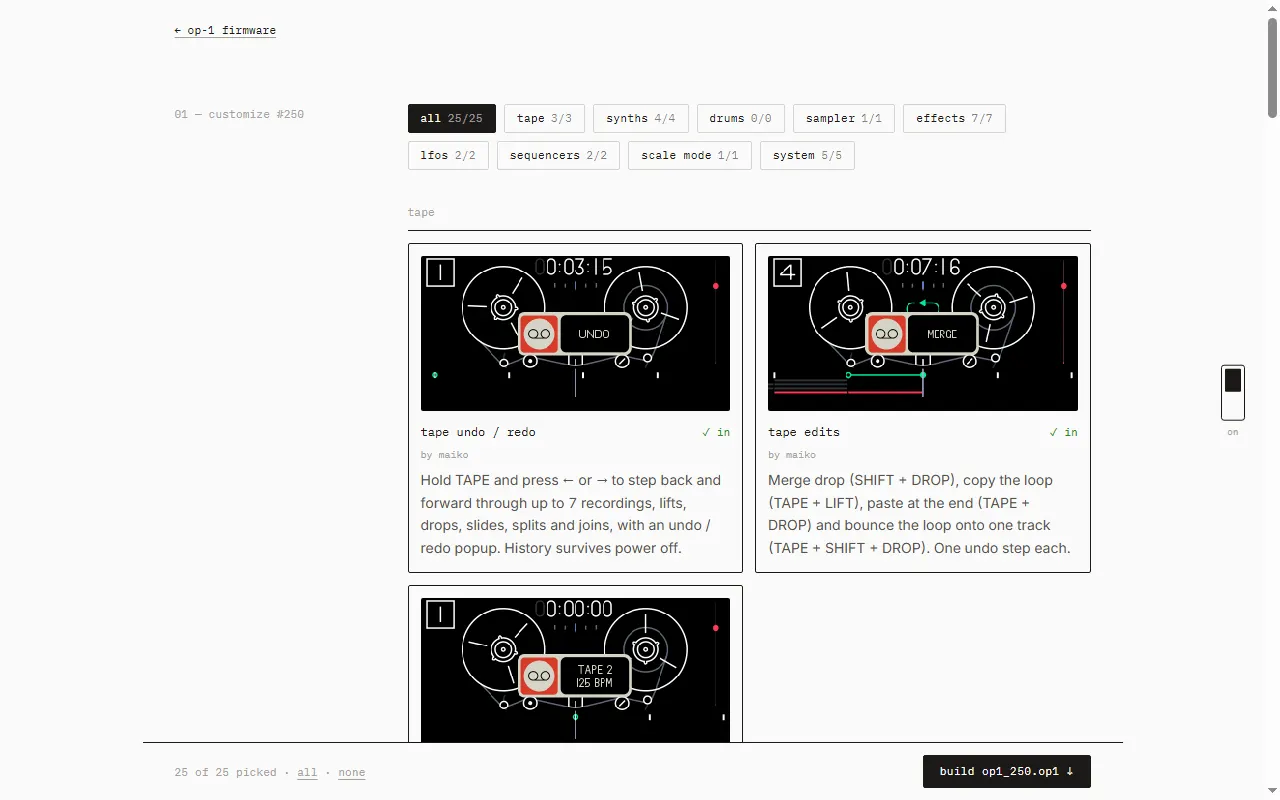
Maiko Pruett's OP-1 Custom Firmware
Pick-your-features custom firmware for the original OP-1: tape undo, four tapes, live tape edits, new FX
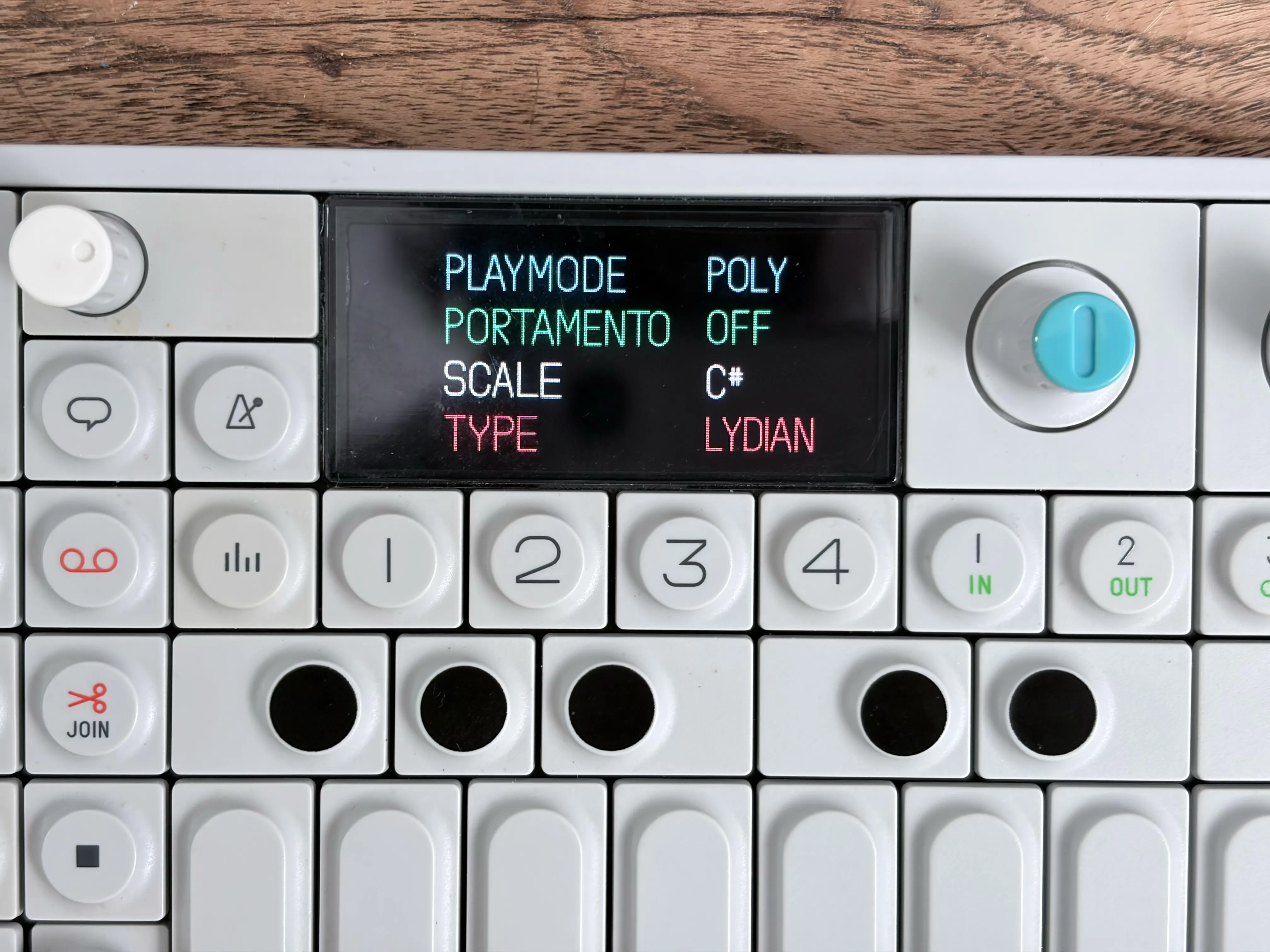
OP-1 Scale Quantization
Firmware mod adding in-scale note quantization to the original OP-1
OP1-SDK
C/assembly SDK for building your own synth engines, effects and sequencers on the original OP-1
op1r
Custom firmware patcher for the original OP-1: new synths, effects, sequencers and a plugin system
op1REpackerGUI
A GUI for op1repacker — create custom OP-1 themes and repack firmware
op1repacker
Unpack, modify and repack OP-1 firmware, with ready-made mods included
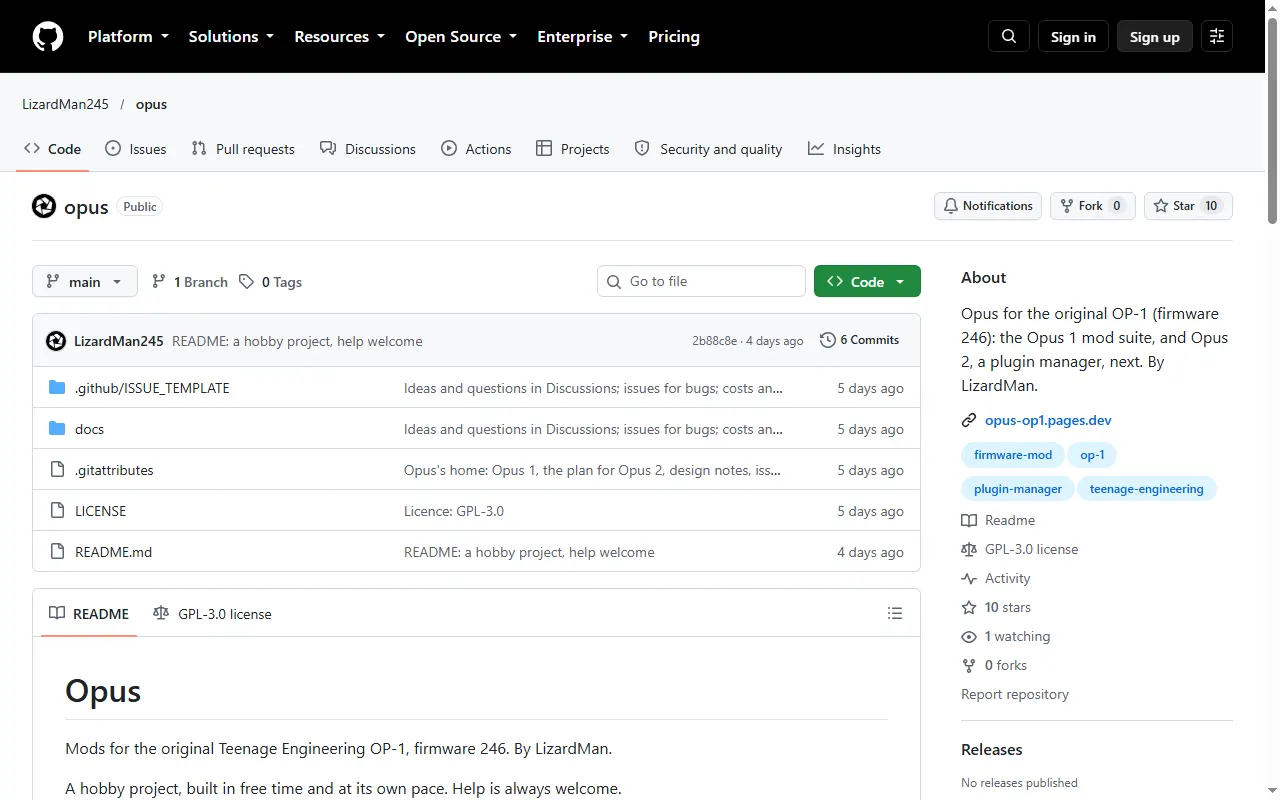
OPUS (OP-1 mod suite)
Mod suite for the original OP-1: new engines, double effects, scales, tape undo, themes
Player & Companion Apps
All player & companion apps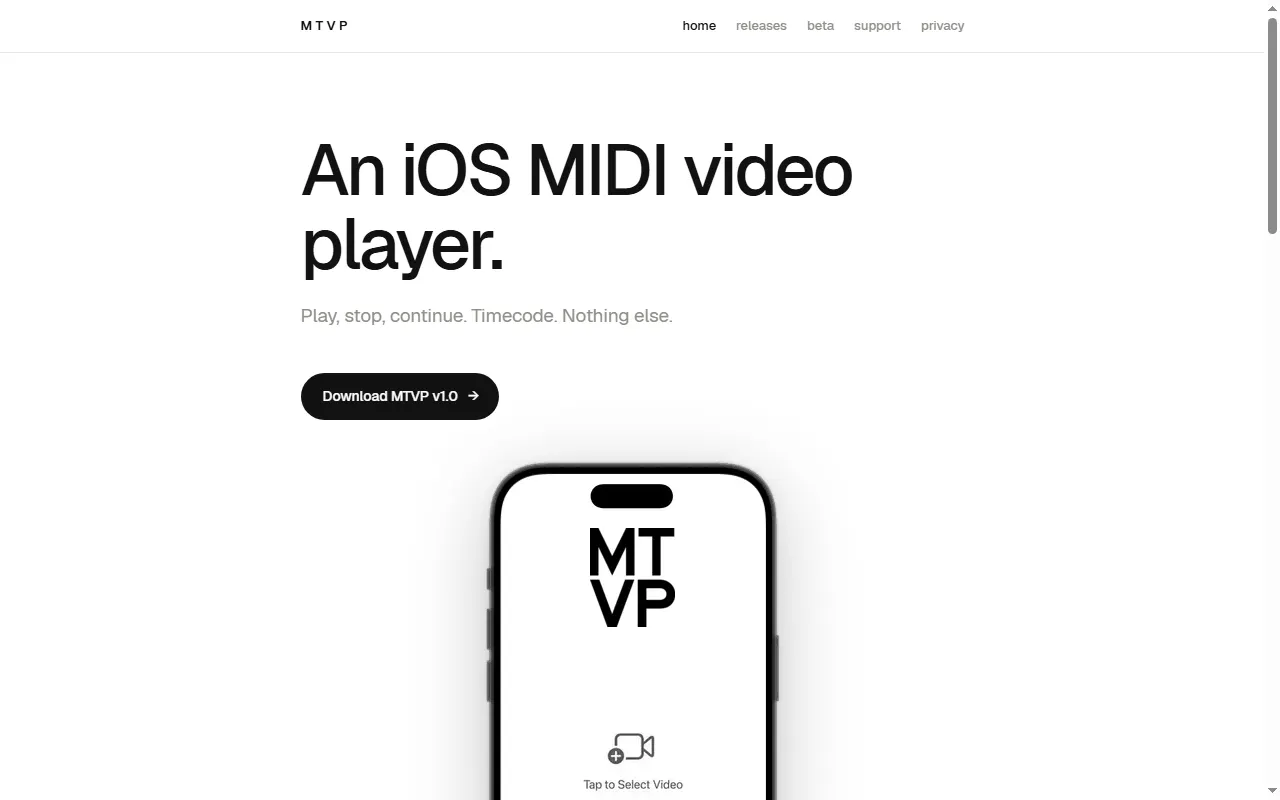
MTVP
MIDI-controlled video player with timecode for scoring to picture
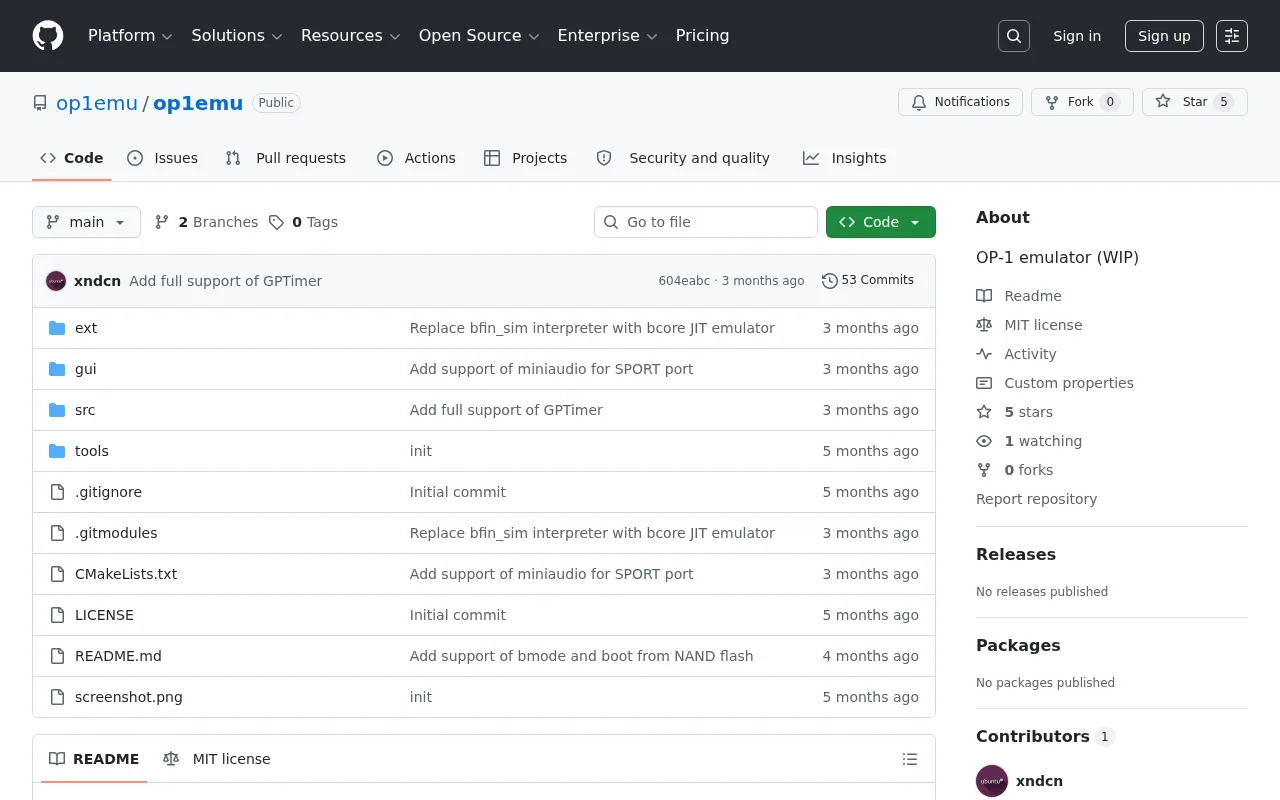
op1emu
A work-in-progress emulator of the original OP-1
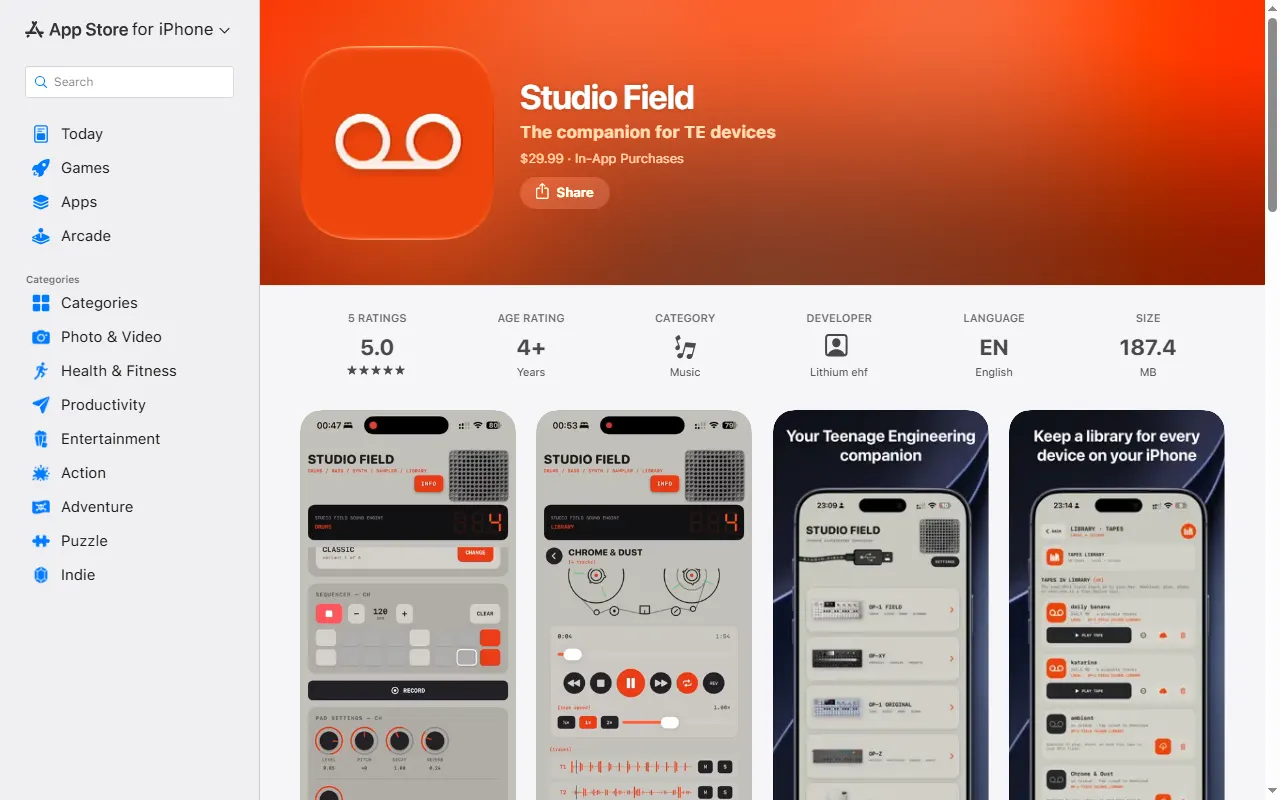
Studio Field
Backup, file-transfer and content manager for TE devices on Mac, iPhone/iPad and Android
Sync for OP-1
Android app to back up and restore an original OP-1 over USB, with a tape and drum player
Guides & Cheatsheets
All guides & cheatsheets
OP-1 Keypad Repair Guide
Community write-up on fixing broken OP-1 keys
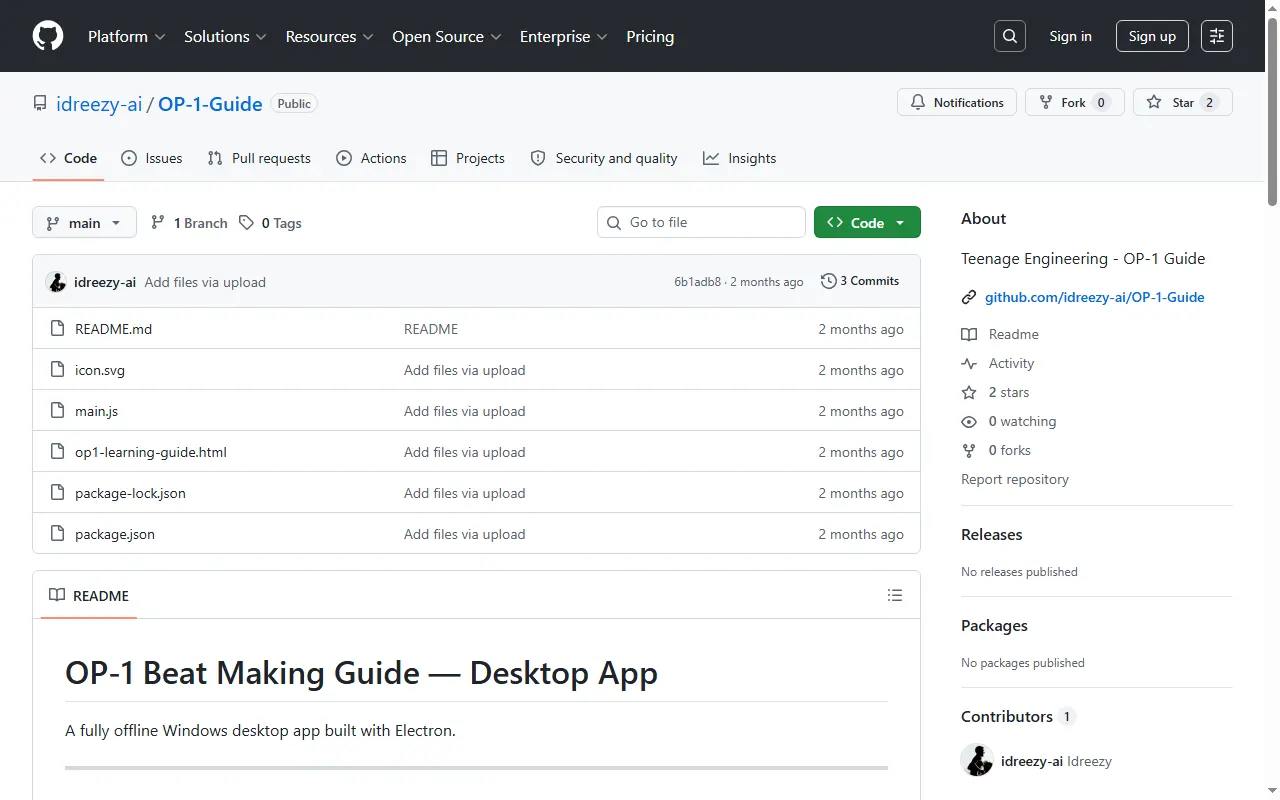
OP-1 Beat Making Guide
Offline desktop guide app for making beats on the OP-1
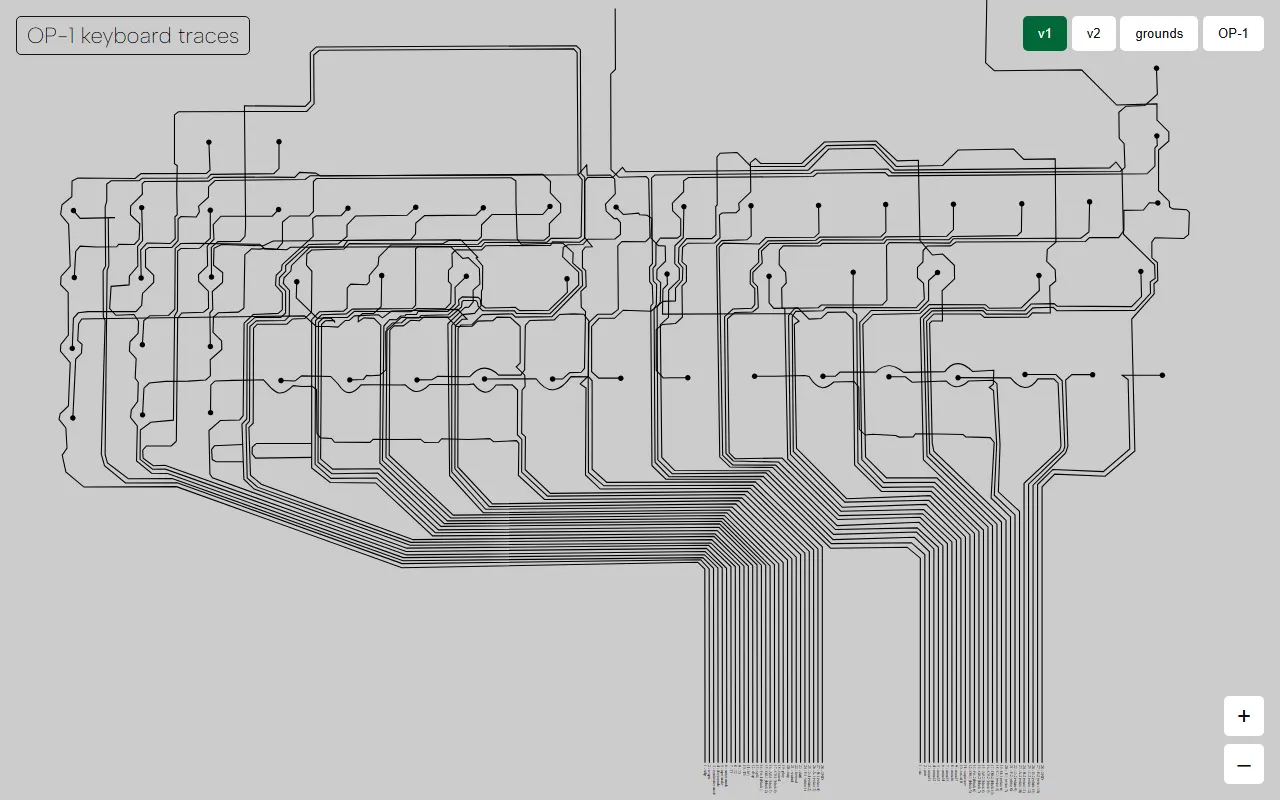
OP-1 Keyboard Trace Tool
Web visualizer of the OP-1 keyboard flex-PCB traces for repairs
OP-1 Tips (op1tips)
A meticulously collected list of OP-1 tips and tricks
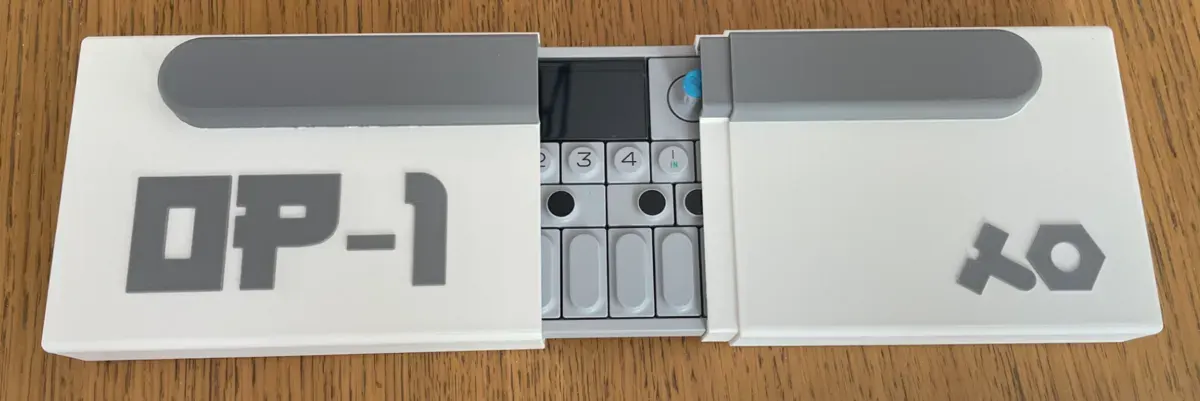
Accessories & 3D Prints
All accessories & 3d prints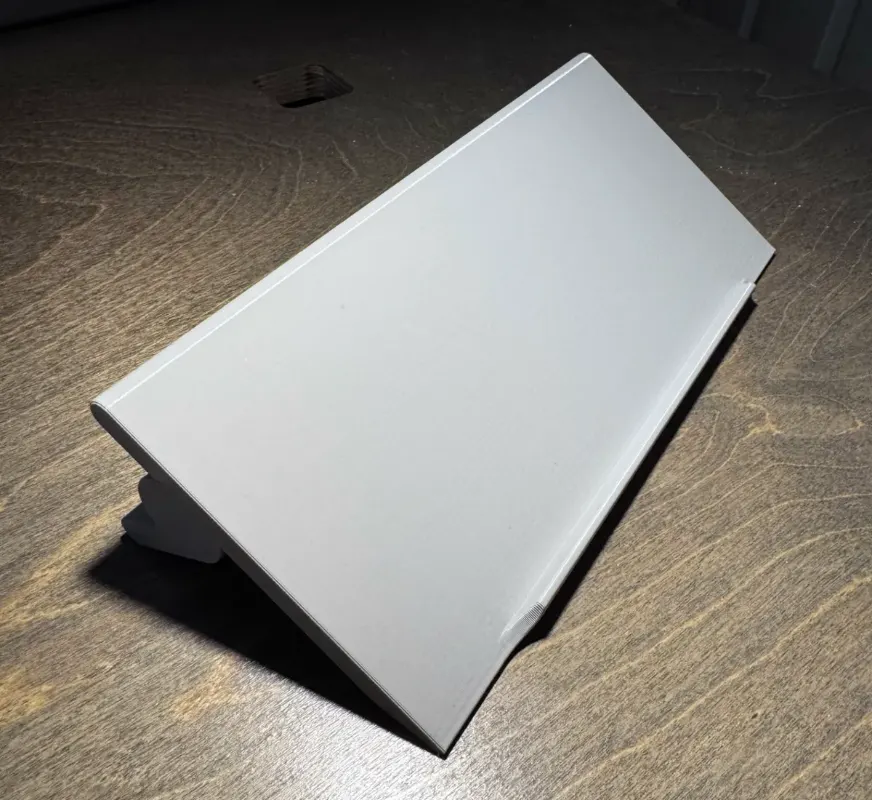
Patch & Preset Editors
All patch & preset editors
OP Patch Utility
Command-line tool for creating and editing patches for the OP-1 and OP-Z
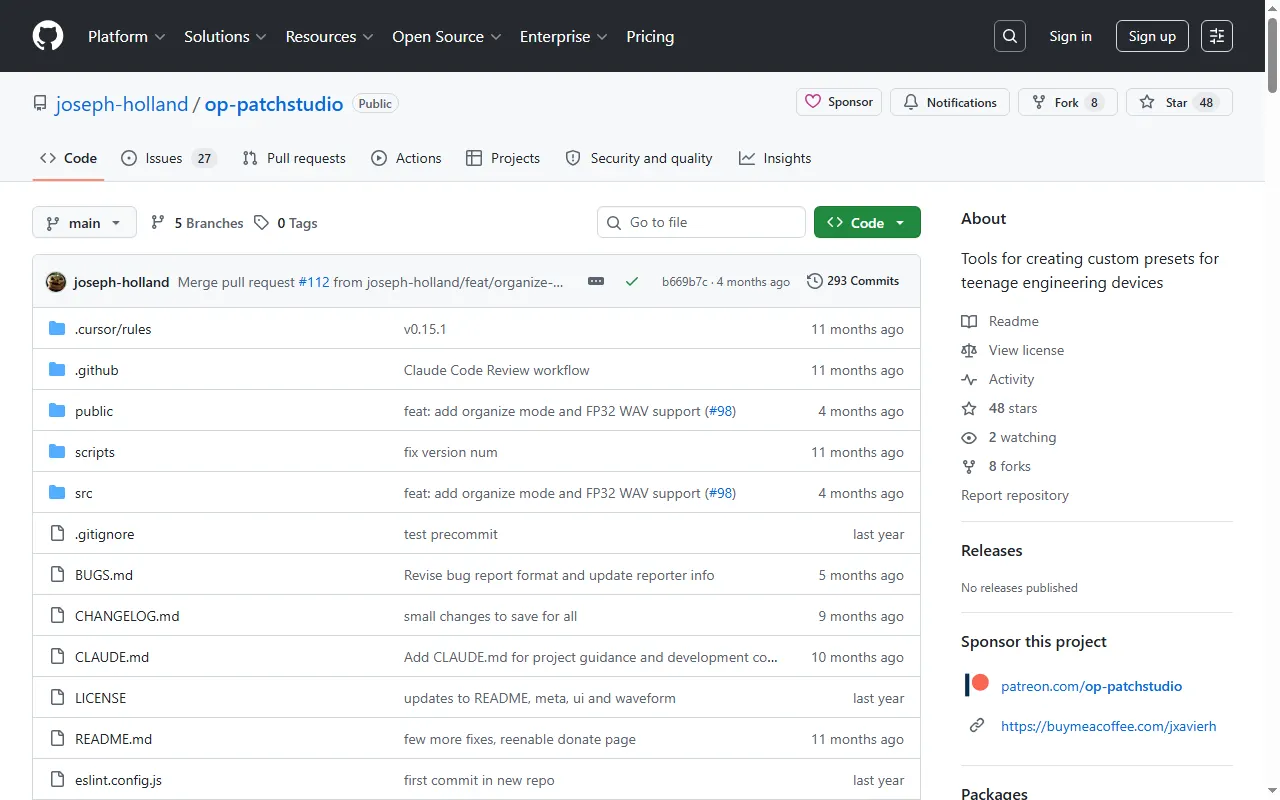
OP-PatchStudio
Browser tool for building custom presets and patches for OP devices
Swift-TE
Pure Swift library that reads and writes OP-1, OP-Z and OP-XY patch formats
Stem & Sample Sourcing
All stem & sample sourcing
Community Hubs
All community hubs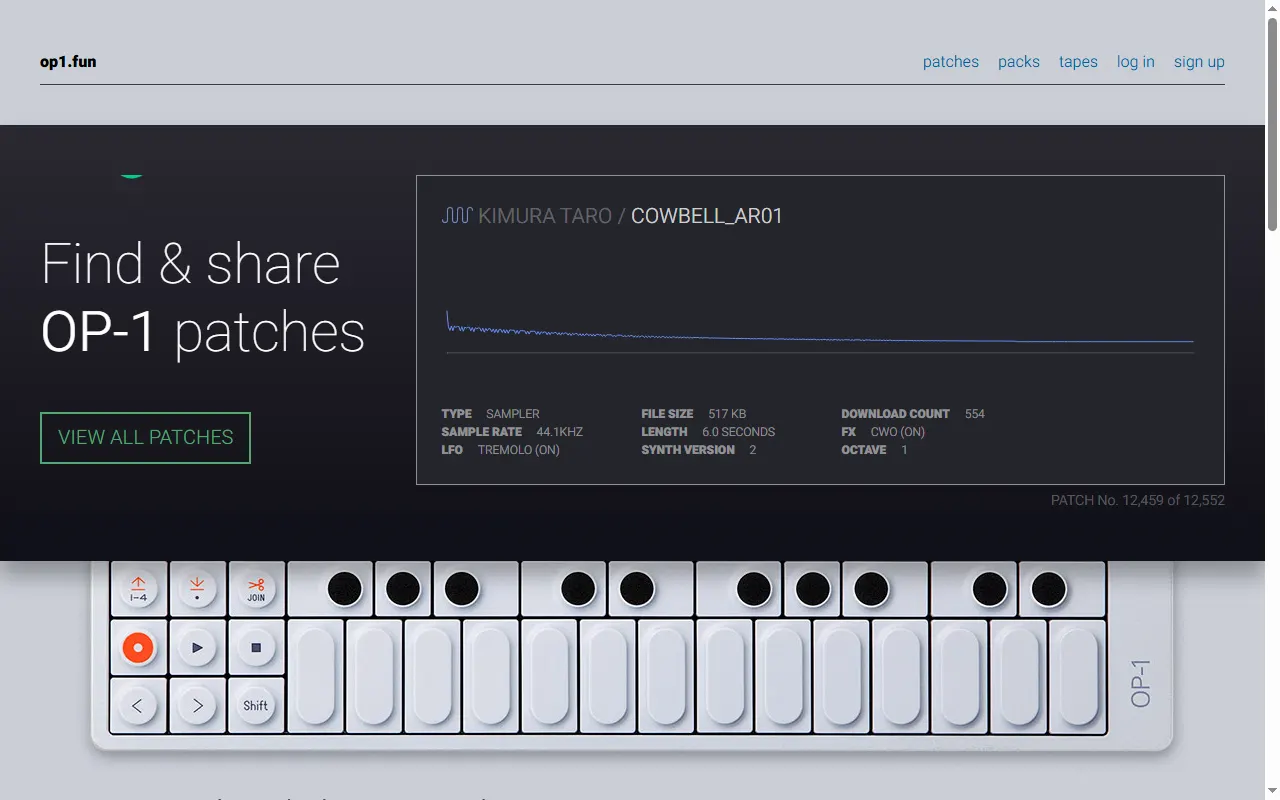
OP-1 questions, answered
All 16 FAQsCan the OP-1 send audio wirelessly over Bluetooth to a speaker?
No — neither the OP-1 nor the OP-1 field has Bluetooth audio output. The only built-in wireless option is the original OP-1's FM radio transmitter, which is noisy and not really meant for clean listening. For good sound, use a wired connection from the headphone/line output, or on the OP-1 field send audio over USB-C to a computer or interface. If you specifically want Bluetooth, run the wired output into a small Bluetooth transmitter.
Do I really need both a case and a Decksaver for the OP-1 field?
They solve different problems, so it's not redundant — but you rarely need both. A Decksaver is a fitted hard lid that clips over the keys and knobs to protect the top surface on a desk or loose in a bag; a case or sleeve protects the whole unit in transit. If you mostly carry it in a padded bag, a Decksaver plus that bag is plenty. If it gets thrown around, a proper hard case (the Analog Cases one is a popular OP-1 field pick) can replace the need for a separate Decksaver.
How do I get tracks off the OP-1 onto an iPad?
Connect the OP-1 to the iPad over USB (USB-C, plus a camera/USB adapter on older iPads) and put the OP-1 into disk/content mode — it mounts as a USB drive, and the iPad's Files app can browse it to copy tape bounces, recordings, and synth/drum presets off. Alternatively record the OP-1's audio out into an iOS app in real time. The OP-1 field exposes the same USB disk for transferring its content.
Any tips for reliably loading drum kits onto the OP-1 / OP-1 field?
Most transfer headaches come down to file format, cable, or disk mode. Make sure samples are 44.1kHz (mono .aif is safest for drum slots), use a USB-C cable that actually carries data rather than a charge-only one, and put the device into its disk/content mode before dragging files. Stay within the per-kit slot and size limits, eject the device properly when you're done, and if a kit won't show up, try a different cable or port before reformatting anything.
Can I apply an effect to just one track on the OP-1 / OP-1 field?
Not directly — the OP-1 and OP-1 field apply their effect to the whole mix rather than to a single tape track, so turning on a delay or reverb colours everything at once. The common workaround is to record the part you want affected through the input (or bounce it) with the effect on, then switch the effect off so it doesn't touch the other tracks. It's an extra step, but it gives you per-part effects on a machine that's built around a shared master effect.
How do people finish/mix down OP-1 (or field) tracks?
There are three common paths. The most flexible is to record the four tape tracks into a DAW — either as one stereo bounce or, if you want stems, track-by-track — and do the final mix, arrangement, and mastering there. Some prefer to stay in-device, using the mixer and master effects and exporting the finished mix. Others merge down to a single track to free up tape while keeping the original layers parked elsewhere on the tape. Pick the DAW route if you want to polish and add parts; stay in-device if the point is to keep the whole thing on the OP-1.